
How to Add Multiple Links to your LinkedIn Profile
One of the best ways to funnel traffic from your LinkedIn profile to your website, calendar, blog, newsletter, etc. is by adding links to all these destinations to your LinkedIn Profile.
LinkedIn allows 4 places for you to add links to your profile. I will tell you which is the most impactful for your current LinkedIn Plan. I will also tell you workarounds for LinkedIn free plan.
This information is based on the latest updates to LinkedIn as of September 2026.
LinkedIn Custom Button
This is currently only available for Premium Business, Sales Navigator and Recruiter Lite users according to LinkedIn's Custom Button help page.
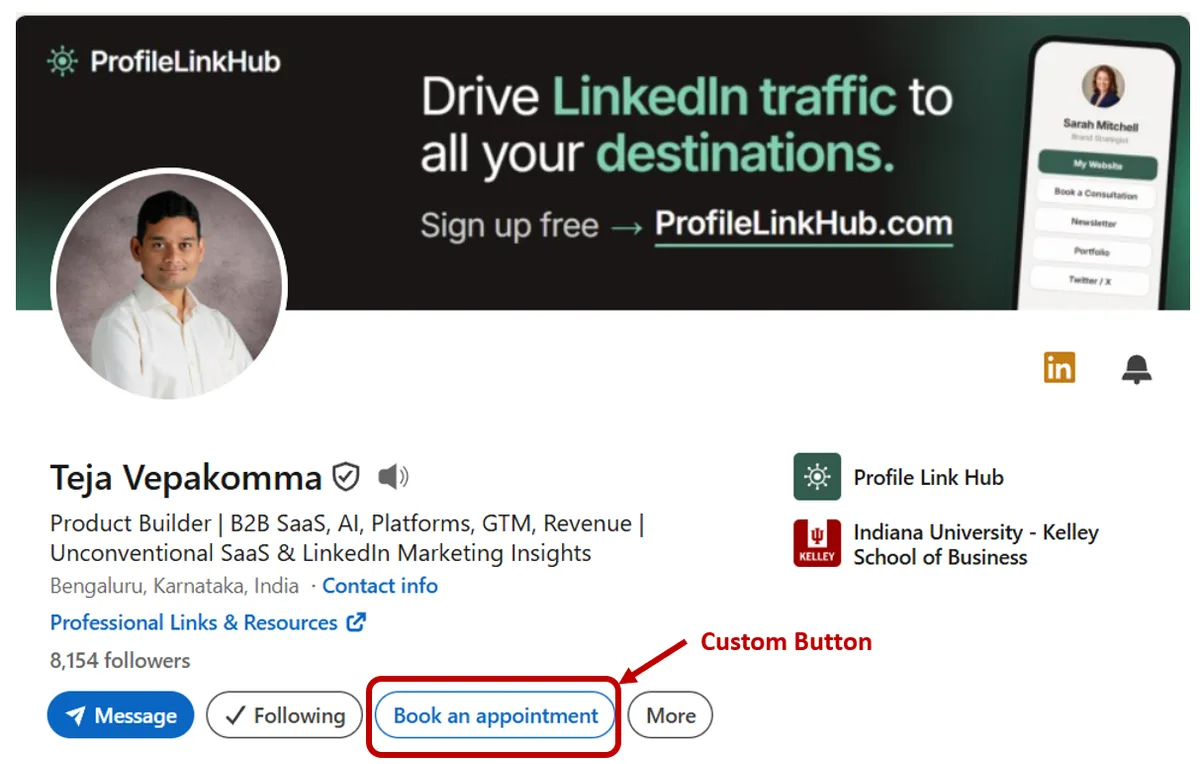
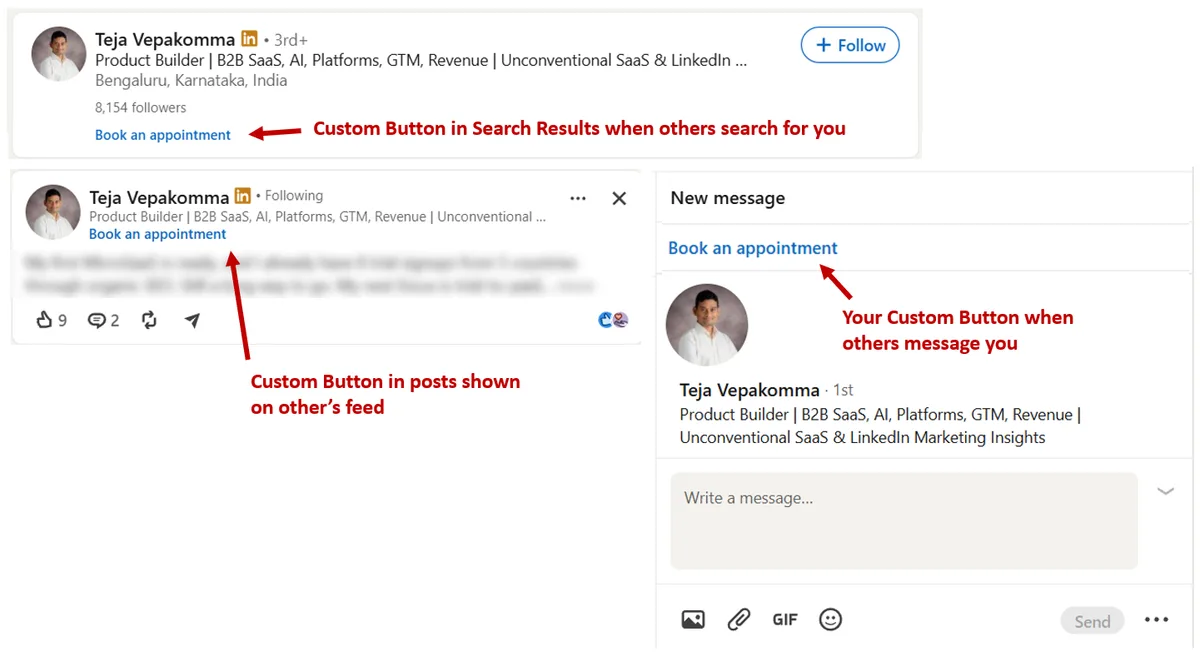
Custom Button is the most powerful way to showcase your external website links because it shows up everywhere: on your profile, on your messages (DMs, Inmail, etc.), whenever you post (LinkedIn feed) and when you show up in search results:
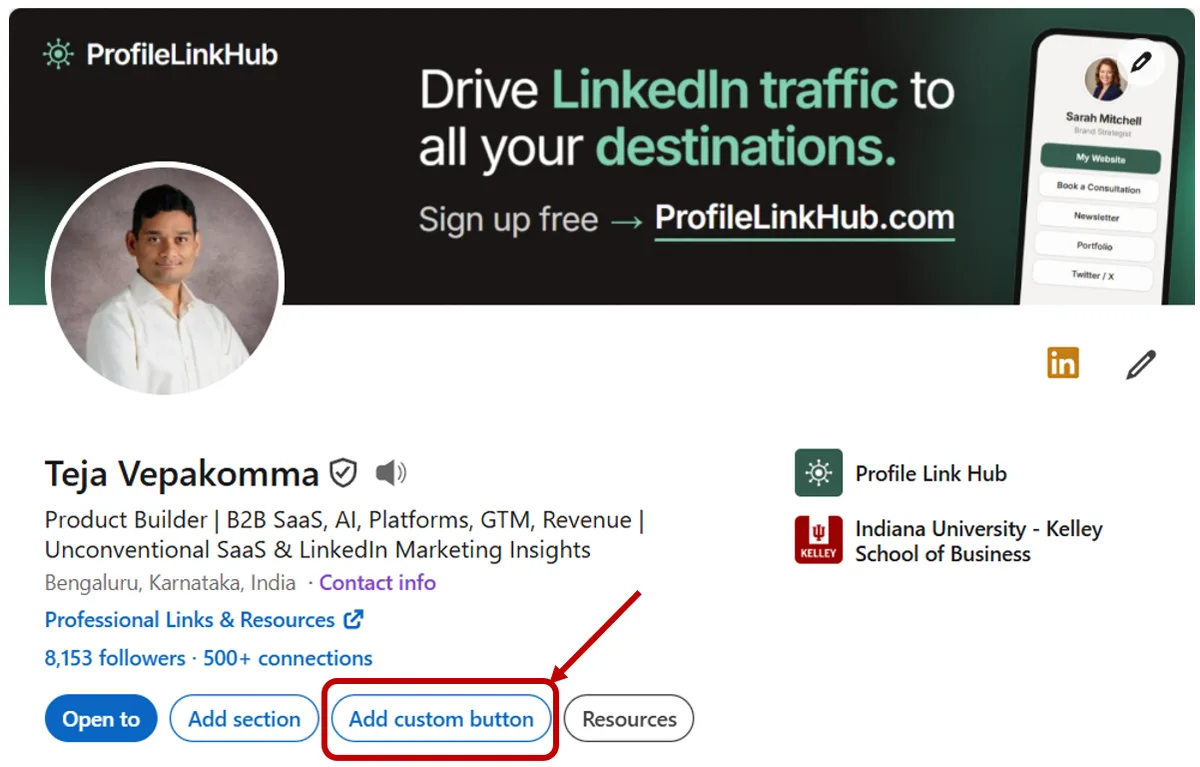
To add a Custom Button to your LinkedIn profile, click on “Add custom button” on your LinkedIn Profile home
The major drawback of the custom button is that it only allows you to have a fixed set of text labels on the button. You can choose between the following:
- Visit my store
- Visit my website
- View my portfolio
- View my blog
- Book an appointment
- View my newsletter
- View my services
Another major drawback of the custom button is that you can add only one custom button link to your profile.
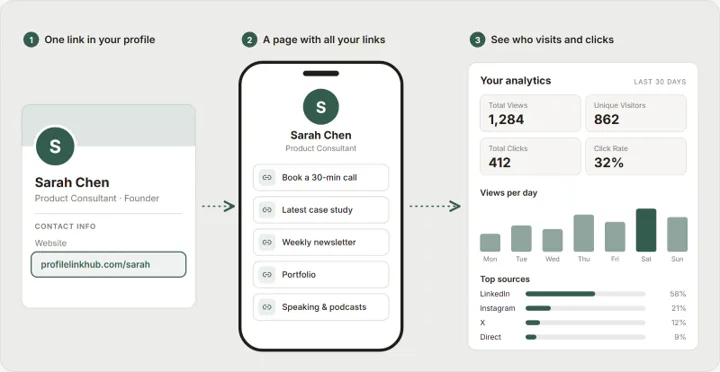
To overcome both these limitations, you can use Profile Link Hub to create a link in bio page with multiple links and add that bio page link to LinkedIn’s Custom Button. This is an extremely powerful way to funnel traffic from LinkedIn to the destinations you would like users to visit.
LinkedIn Profile Hyperlink
This LinkedIn Premium Creator Mode feature has been discontinued but if you already have a link, it continues to be available (so don’t remove it!).
As this isn’t available to new Premium subscribers, I will not describe how to add it.
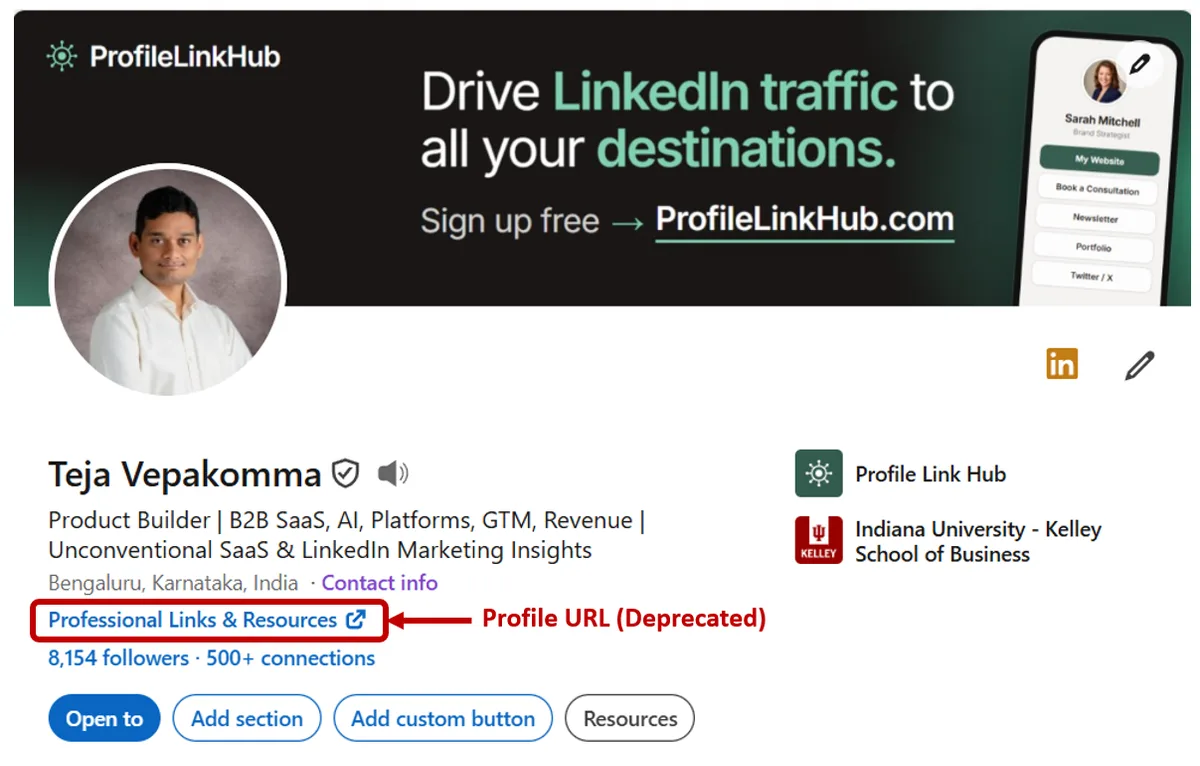
If you already have it, please note that LinkedIn has reduced visibility of this Profile Hyperlink (in favour of Custom Button). Only people looking at your profile will see the link. Earlier this hyperlink was visible when you post, comment, DM or show up in search results, but not anymore.
The advantage of this feature (if you still have it) is that it lets you edit the hyperlink text (unlike Custom Button which only has specific text options available).
As of September 2026, I still have this hyperlink as you can see below:
LinkedIn Featured Section
The LinkedIn featured section is available to all LinkedIn users including free users.
To create multiple links, simply create a LinkedIn Post with multiple links (only 1st link is previewed) and add it to the featured section as the first post in the list:
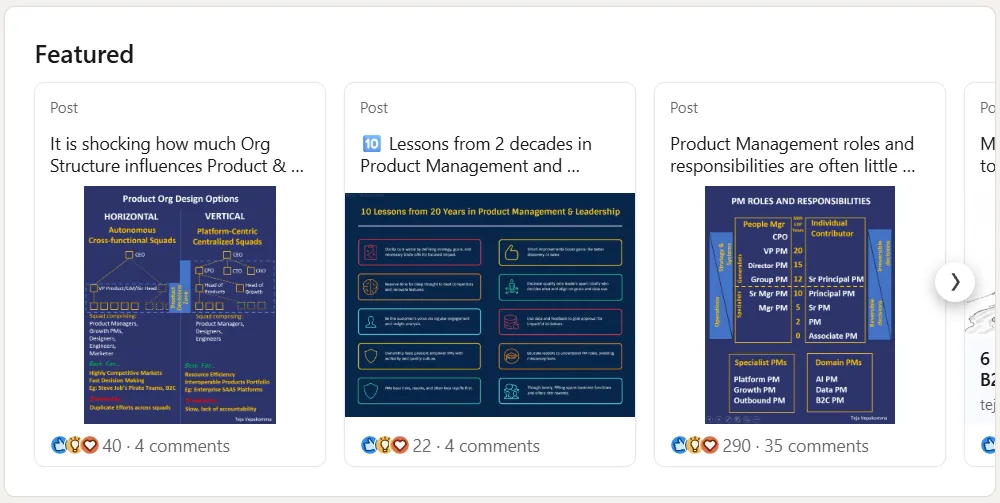
The disadvantage of this is that the Featured section shows much lower down in your LinkedIn profile, and it is only visible to users who scroll down on your profile. So, visibility is limited. Also, users have to perform 2 clicks to access the links in the post.
Contact Info
Contact Info is available to all LinkedIn users, including free users.
Contact Info section is shown on your profile page. You can add up to 3 links in the Contact Info section as LinkedIn's Contact Info help page explains.
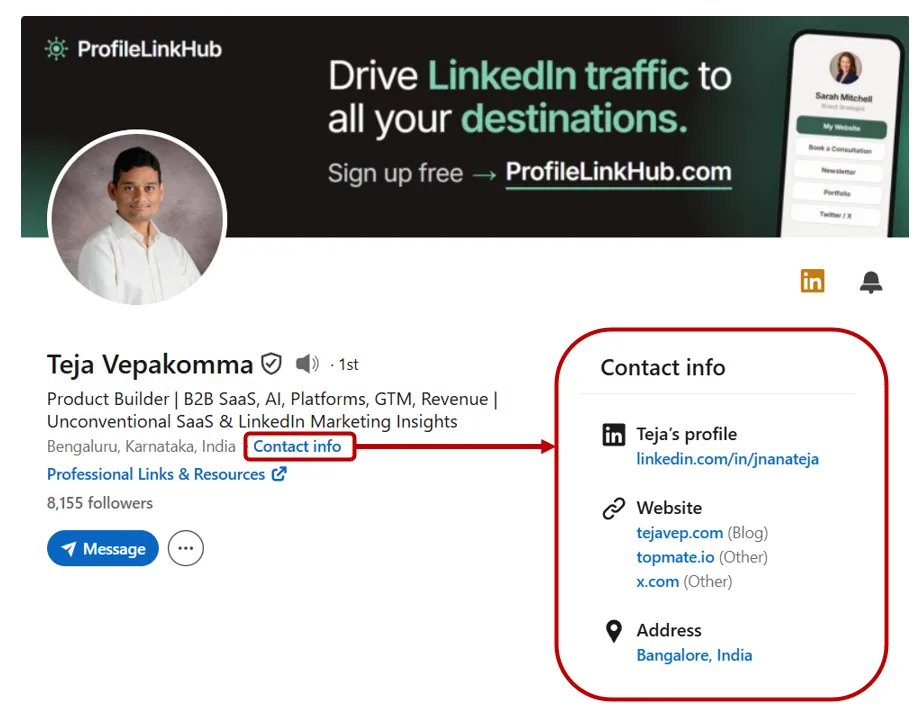
The drawback is that Contact Info needs an extra click, and only visitors who want to contact you will open it. That gives your external links very low visibility.
If you are on the free plan, though, Contact Info and the Featured section are the only two places to add links to your LinkedIn profile.
Turn One LinkedIn Link Into Many
Whichever placement you use, one link is usually not enough. A link in bio page lets you send every visitor to the destination that fits them, and you can see which links they click. If you want the basics first, see how to put multiple links in one link. If you are weighing tools, compare link in bio tools for LinkedIn. ProfileLinkHub offers a 30-day free trial, and you can see the details on the pricing page. To set one up step by step, follow how to create your link in bio page.
Frequently Asked Questions
How many links can I add to a free LinkedIn profile?
Up to 3 websites in Contact Info, plus a LinkedIn post containing as many links as you like, pinned as the first item in your Featured section. The Custom Button is limited to eligible Premium plans and the Profile Hyperlink is closed to new users.
Does the LinkedIn Custom Button work on a free account?
No. LinkedIn offers the Custom Button to eligible Premium Business, Sales Navigator and Recruiter Lite subscribers only. On the free plan, use the Featured section and Contact Info instead.
I already have the LinkedIn Profile Hyperlink. Should I remove it?
No. LinkedIn has removed the option to add a profile hyperlink, so once you delete it you cannot add it back. It is now shown only to people viewing your profile, but it still lets you edit the link text.
Which LinkedIn link placement gets the most visibility?
The Custom Button. It appears on your profile, in messages, on your posts in the feed and in search results. Every other placement shows only on your profile, and Featured and Contact Info need a scroll or an extra click.
How many Custom Buttons can I add, and what can the label say?
One. You choose from seven fixed labels: Visit my store, Visit my website, View my portfolio, View my blog, Book an appointment, View my newsletter and View my services.
Can I point the LinkedIn Custom Button at a link in bio page?
Yes. The button links to any URL you choose, so pointing it at a link in bio page such as ProfileLinkHub lets a single button lead visitors to your website, calendar, newsletter and more.